 COME
COMECOME Explore versus the account menu
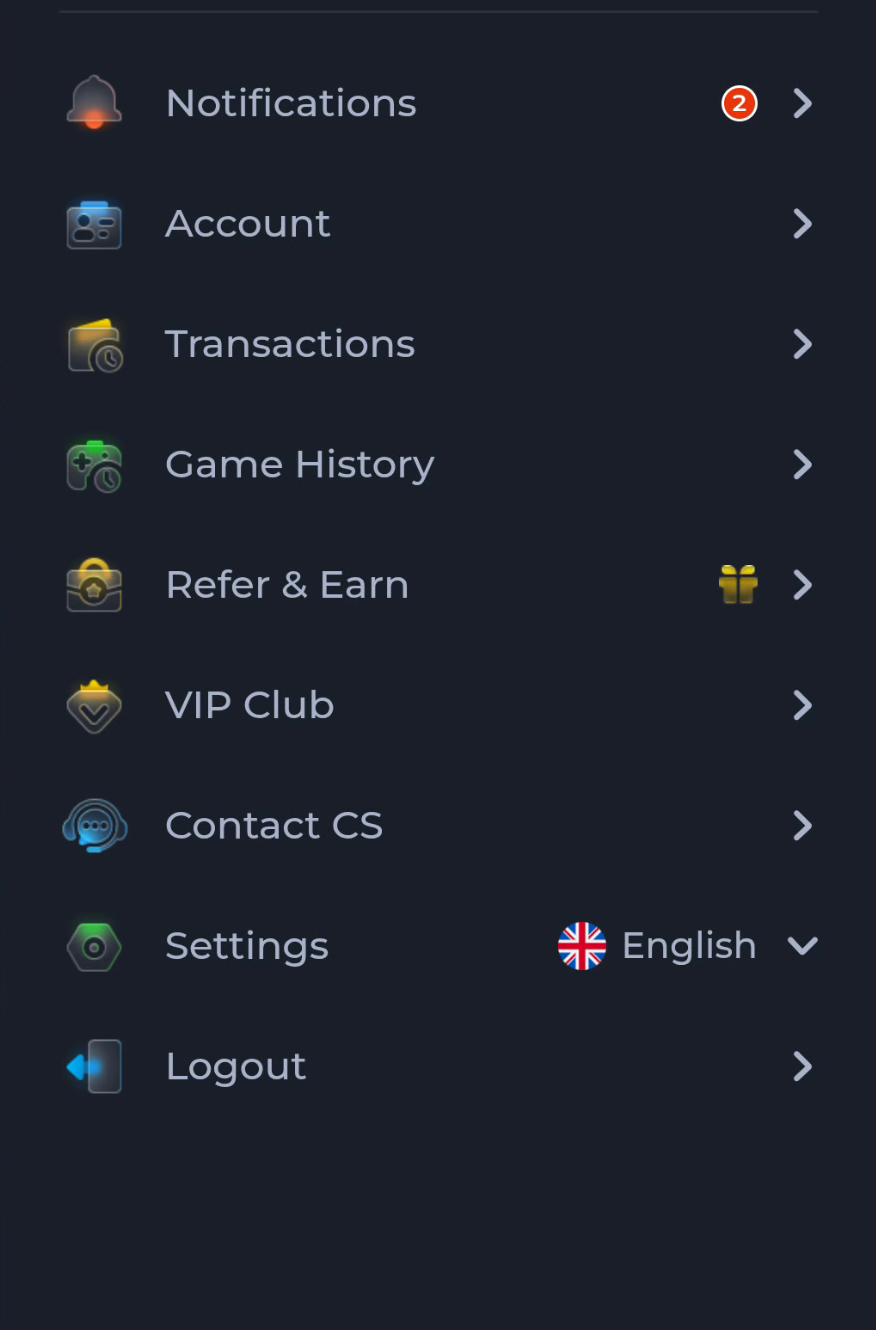
Explore organises game and category browsing; the account menu organises account, history, rewards, help and preferences.
Work through this situation
Start with Explore to see content categories. Use Account, Transactions or Game History when your question concerns your own activity. Opening a game tile does not open account support.
What to check and why
Decide whether your question concerns content or your own account. For browsing, begin at Explore and read the category labels. For a payment or past activity question, open the account menu and choose the corresponding record. This prevents a search for personal history from becoming a tour through unrelated game tiles.
The distinction also helps when returning to the app after installation. Recognise the main screen first, then choose the task. A visible game cover is an entry to that activity, not a shortcut to support or preferences. If you need language, update or audio controls, use Settings; if you need assistance, use Contact CS or the appropriate Customer Center topic.
Recognise the relevant screen
Match help to the task
The account menu and Customer Center provide different routes for preferences, records and assistance. A help-category answer explains a topic, while an account-specific issue needs the relevant service context. Read the visible wording on your own screen because layouts can change. This website provides explanations and navigation; it cannot complete an account action or alter a service record.
What a completed answer looks like
Choose the menu by the task you are trying to complete rather than by the nearest icon.
If the screen still does not answer the question, keep the exact wording and use the matching in-app help context.
Choose another specific COME guide